Java采样分析器JProfiler通常使用JVM工具接口(JVMTI)设计,并在安全点收集堆栈跟踪。因此,这些采样分析器可能会受到安全点偏差问题的影响。
为了全面了解应用程序,我们需要一个采样分析器,它不需要线程处于安全点,并且可以随时收集堆栈跟踪,以避免安全点偏差问题。
在本文中,我们将探讨async-profiler及其提供的各种性能分析技术。
async-profiler
async-profiler是一款基于HotSpot JVM的采样分析工具,适用于任何基于JDK的应用。它开销低,且不依赖于JVMTI。
它通过使用HotSpot JVM提供的AsyncGetCallTrace API来分析Java代码路径,并使用Linux的perf_events来分析本机代码路径,从而避免了安全点偏差问题。
换句话说,性能分析器会匹配Java代码和本机代码路径的调用堆栈,以生成准确的结果。
设置
安装
首先,我们将根据我们的平台下载最新版本的async-profiler。目前,它仅支持Linux和macOS平台。
下载完成后,我们可以检查它是否能在我们的平台上运行:
$ ./profiler.sh --version

Async-profiler 1.7.1 built on May 14 2020
Copyright 2016-2020 Andrei Pangin
事先检查async-profiler的所有可用选项总是一个好主意:
$ ./profiler.shUsage: ./profiler.sh [action] [options]
Actions:
start start profiling and return immediately
resume resume profiling without resetting collected data
stop stop profiling
check check if the specified profiling event is available
status print profiling status
list list profiling events supported by the target JVM
collect collect profile for the specified period of time
and then stop (default action)
Options:
-e event profiling event: cpu|alloc|lock|cache-misses etc.
-d duration run profiling for seconds
-f filename dump output to
-i interval sampling interval in nanoseconds
-j jstackdepth maximum Java stack depth
-b bufsize frame buffer size
-t profile different threads separately
-s simple class names instead of FQN
-g print method signatures
-a annotate Java method names
-o fmt output format: summary|traces|flat|collapsed|svg|tree|jfr
-I include output only stack traces containing the specified pattern
-X exclude exclude stack traces with the specified pattern
-v, --version display version string
--title string SVG title
--width px SVG width
--height px SVG frame height
--minwidth px skip frames smaller than px
--reverse generate stack-reversed FlameGraph / Call tree
--all-kernel only include kernel-mode events
--all-user only include user-mode events
--cstack mode how to traverse C stack: fp|lbr|no
is a numeric process ID of the target JVM
or 'jps' keyword to find running JVM automatically许多展示的选项在后续章节中会派上用场。
内核配置
在Linux平台上使用async-profiler时,我们应该确保将内核配置为使用perf_events来捕获所有用户的调用堆栈:
首先,我们将perf_event_paranoid设置为1,这将允许性能分析器收集性能信息:
$ sudo sh -c 'echo 1 >/proc/sys/kernel/perf_event_paranoid'然后,我们将把kptr_restrict设置为0,以取消对暴露内核地址的限制:
$ sudo sh -c 'echo 0 >/proc/sys/kernel/kptr_restrict'然而,async-profiler 可以在 macOS 平台上独立运行。
现在我们的平台已经准备就绪,我们可以构建性能分析应用程序,并使用Java命令运行它:
$ java -XX:+UnlockDiagnosticVMOptions -XX:+DebugNonSafepoints -jar path-to-jar-file在这里,我们使用-XX:+UnlockDiagnosticVMOptions和-XX:+DebugNonSafepoints这两个JVM标志启动了我们的性能分析应用程序,这两个标志对于获得准确结果来说是非常推荐的。
既然我们已经准备好对应用程序进行性能分析,那么就让我们来探索一下async-profiler所支持的各种性能分析类型。
CPU性能分析
在分析CPU时,Async-Profiler会收集Java方法的样本堆栈跟踪,包括JVM代码、本机类和内核函数。
让我们使用应用程序的进程ID(PID)来分析它:
$ ./profiler.sh -e cpu -d 30 -o summary 66959
Started [cpu] profiling
--- Execution profile ---
Total samples       : 28

Frame buffer usage  : 0.069%
在这里,我们使用-e选项定义了cpu profiling事件。然后,我们使用-d <duration>选项收集了30秒的样本。
最后,-o选项可用于定义输出格式,如摘要、HTML、跟踪、SVG和树状图。
让我们在CPU分析应用程序的同时,创建HTML输出:
$ ./profiler.sh -e cpu -d 30 -f cpu_profile.html 66959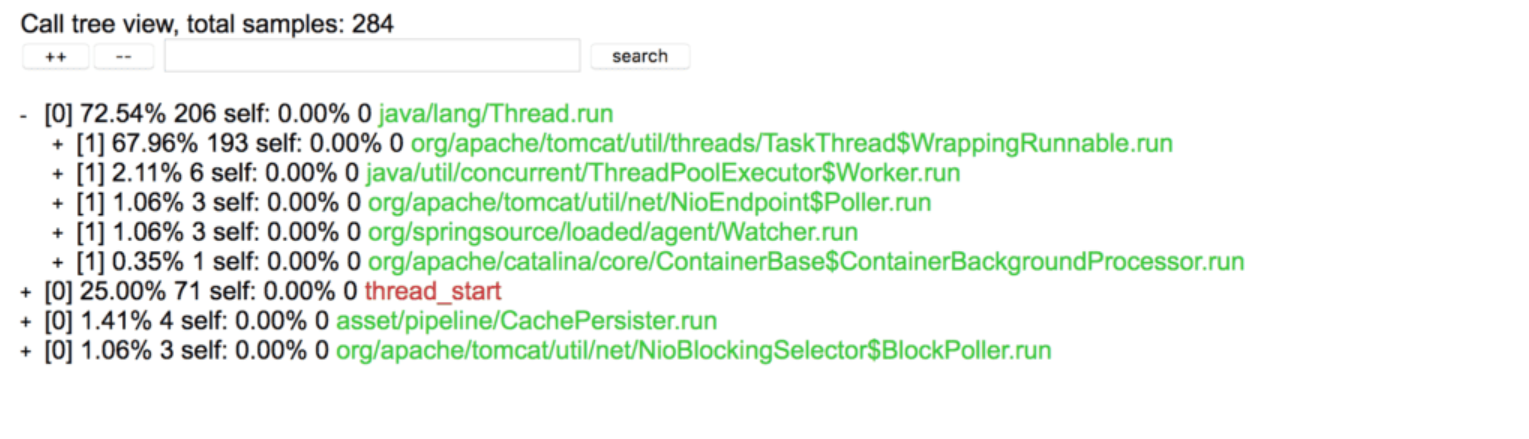
在这里,我们可以看到HTML输出允许我们展开、折叠和搜索示例。
此外,async-profiler还支持即开即用的火焰图功能。
让我们使用.svg文件扩展名为应用程序的CPU性能分析生成一个火焰图:
$ ./profiler.sh -e cpu -d 30 -f cpu_profile.svg 66959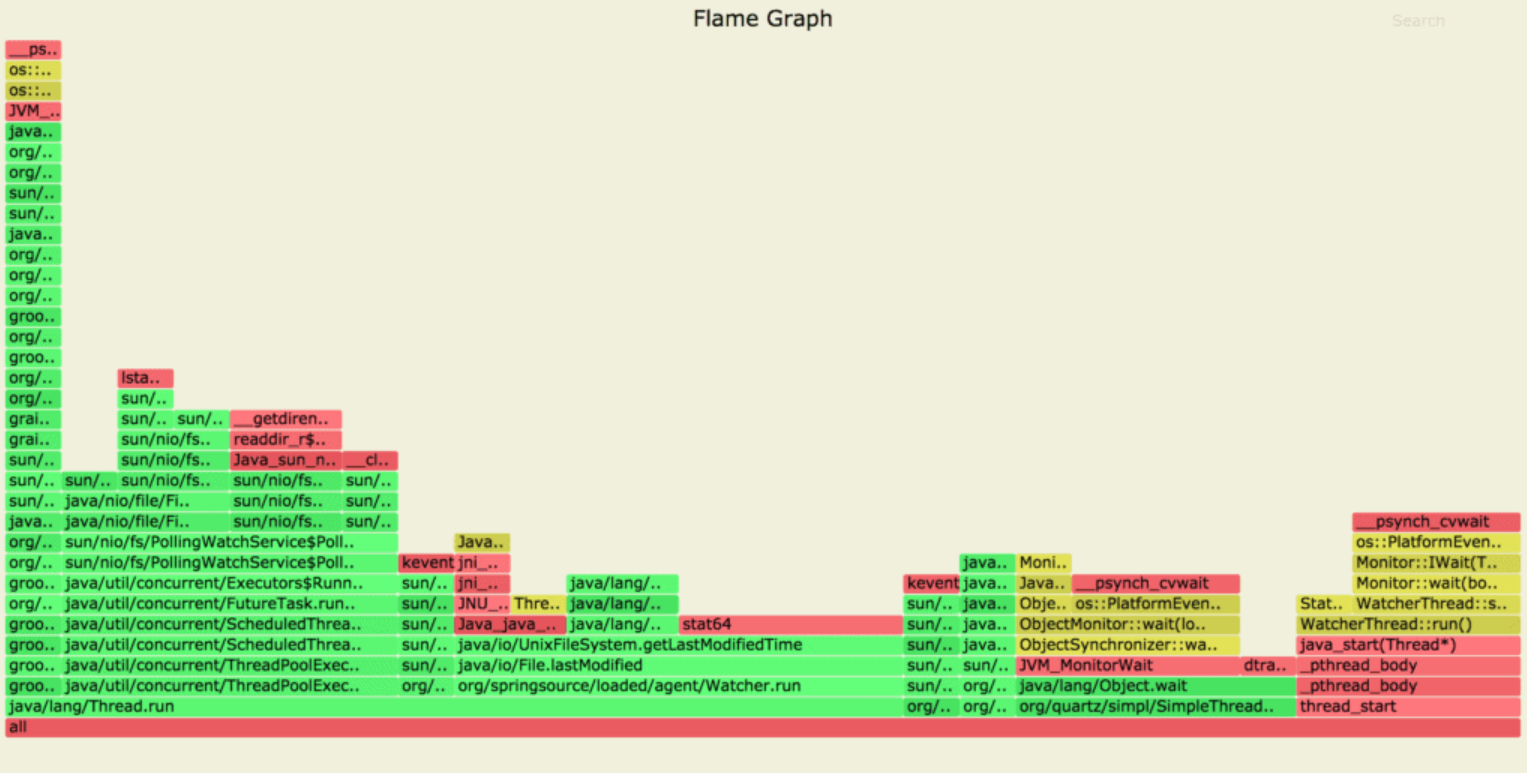
在这里,生成的火焰图以绿色表示Java代码路径,黄色表示C++代码路径,红色表示系统代码路径。
分配分析
同样,我们可以在不使用字节码插装等侵入性技术的情况下收集内存分配样本。
async-profiler采用基于TLAB(线程本地分配缓冲区)的采样技术,收集大于TLAB平均大小的堆分配样本。
通过使用alloc事件,我们可以让性能分析器收集我们正在分析的应用程序的堆分配情况:
$ ./profiler.sh -e alloc -d 30 -f alloc_profile.svg 66255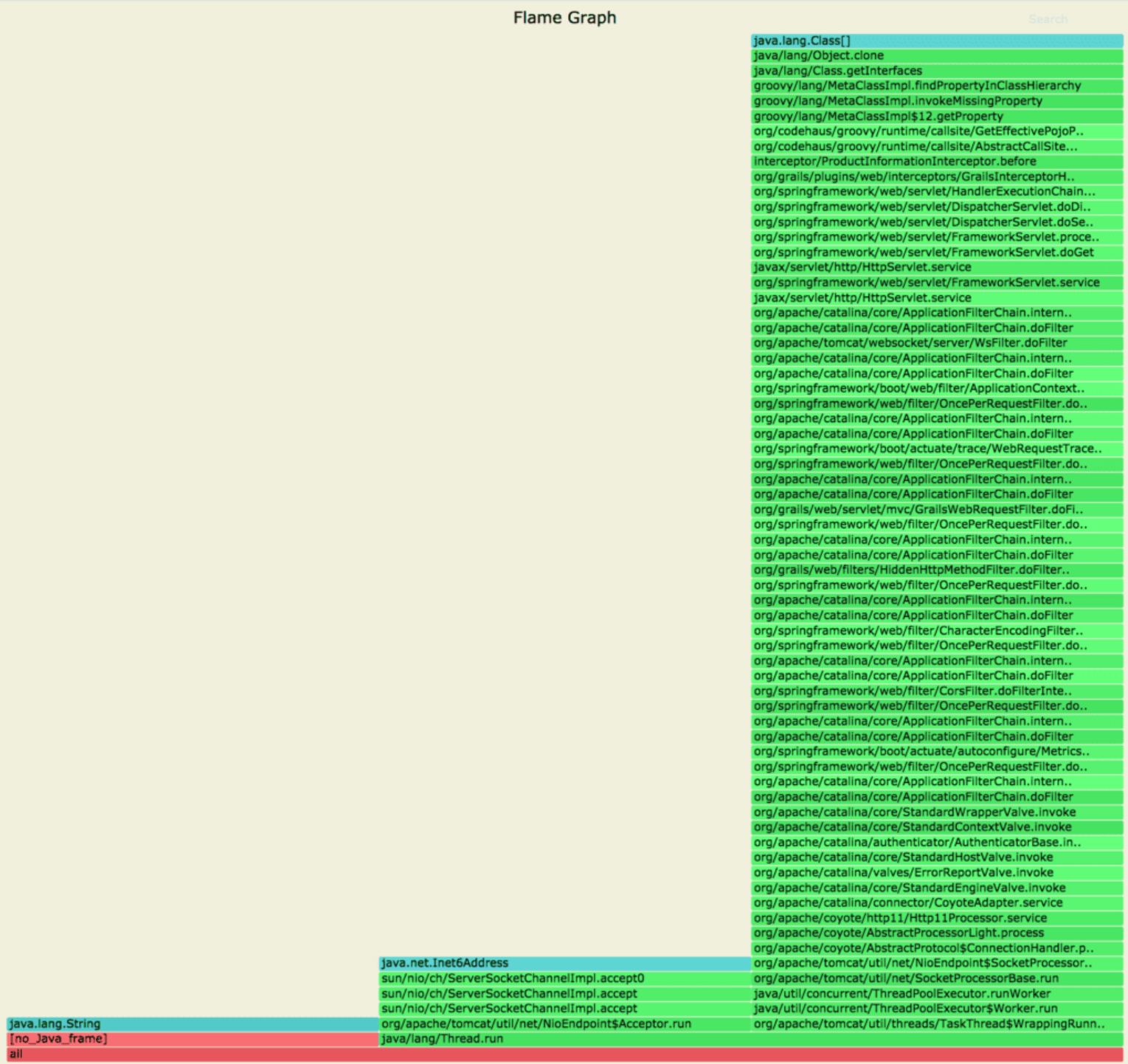
在这里,我们可以看到对象克隆已经分配了很大一部分内存,而这一点在查看代码时很难察觉。
挂钟式分析
此外,async-profiler可以通过使用墙钟(wall-clock)配置文件,对所有线程进行采样,无论其状态如何——如运行、休眠或阻塞。
在排除应用程序启动时间问题时,这可能会非常方便。
通过定义墙事件,我们可以配置性能分析器以收集所有线程的样本:
$ ./profiler.sh -e wall -t -d 30 -f wall_clock_profile.svg 66959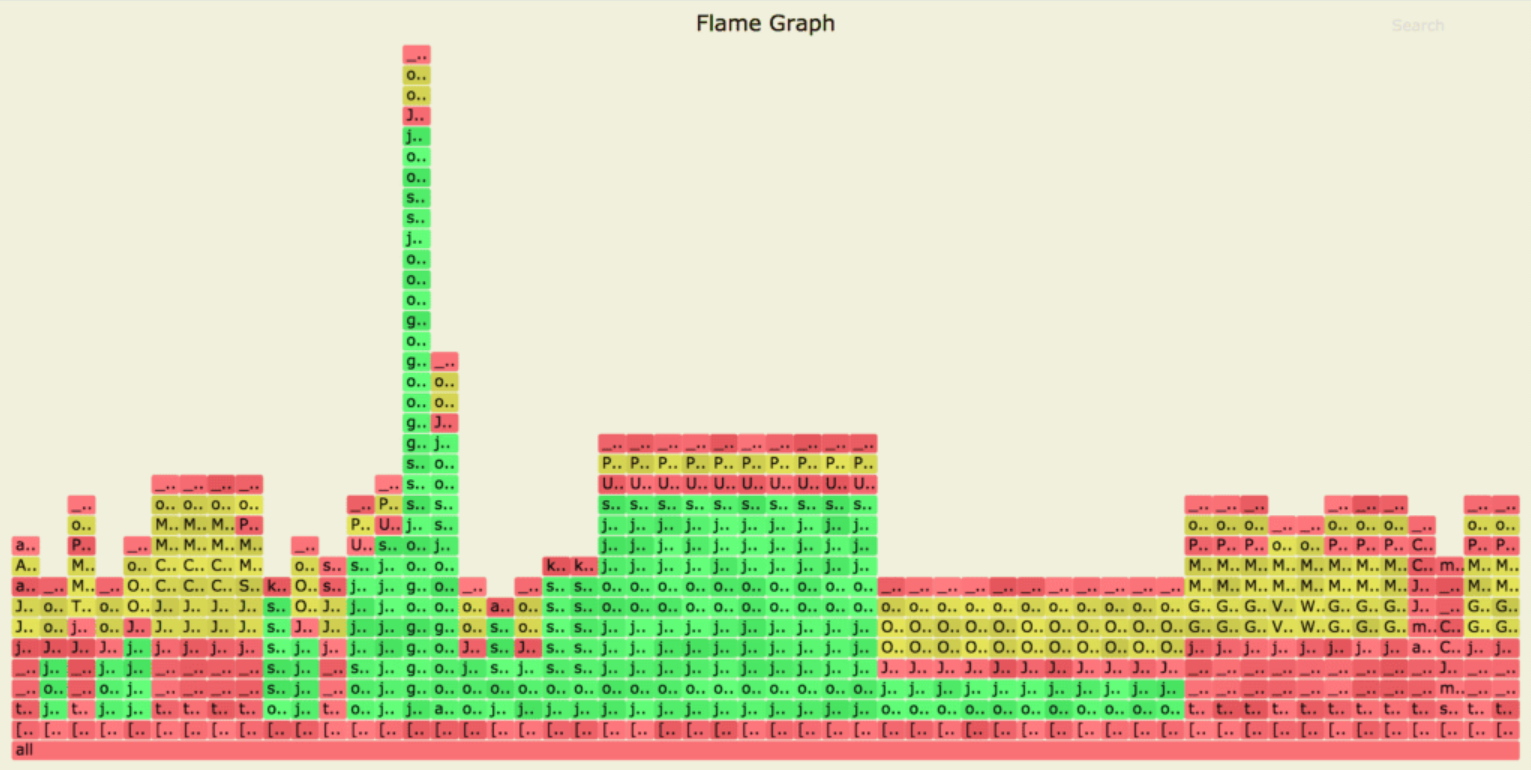
在此,我们使用了带-t选项的每线程模式下的挂钟分析器,在分析所有线程时,强烈推荐使用此模式。
此外,我们可以通过使用列表选项来查看JVM支持的所有性能分析事件:
$ ./profiler.sh list 66959Basic events:
cpu
alloc
lock
wall
itimer
Java method calls:
ClassName.methodName使用IntelliJ IDEA的async-profiler
IntelliJ IDEA集成了async-profiler作为Java的性能分析工具。
探查器配置
我们可以在IntelliJ IDEA中配置async-profiler,方法是在“设置/首选项”>“构建、执行、部署”中选择“Java Profiler”菜单选项:
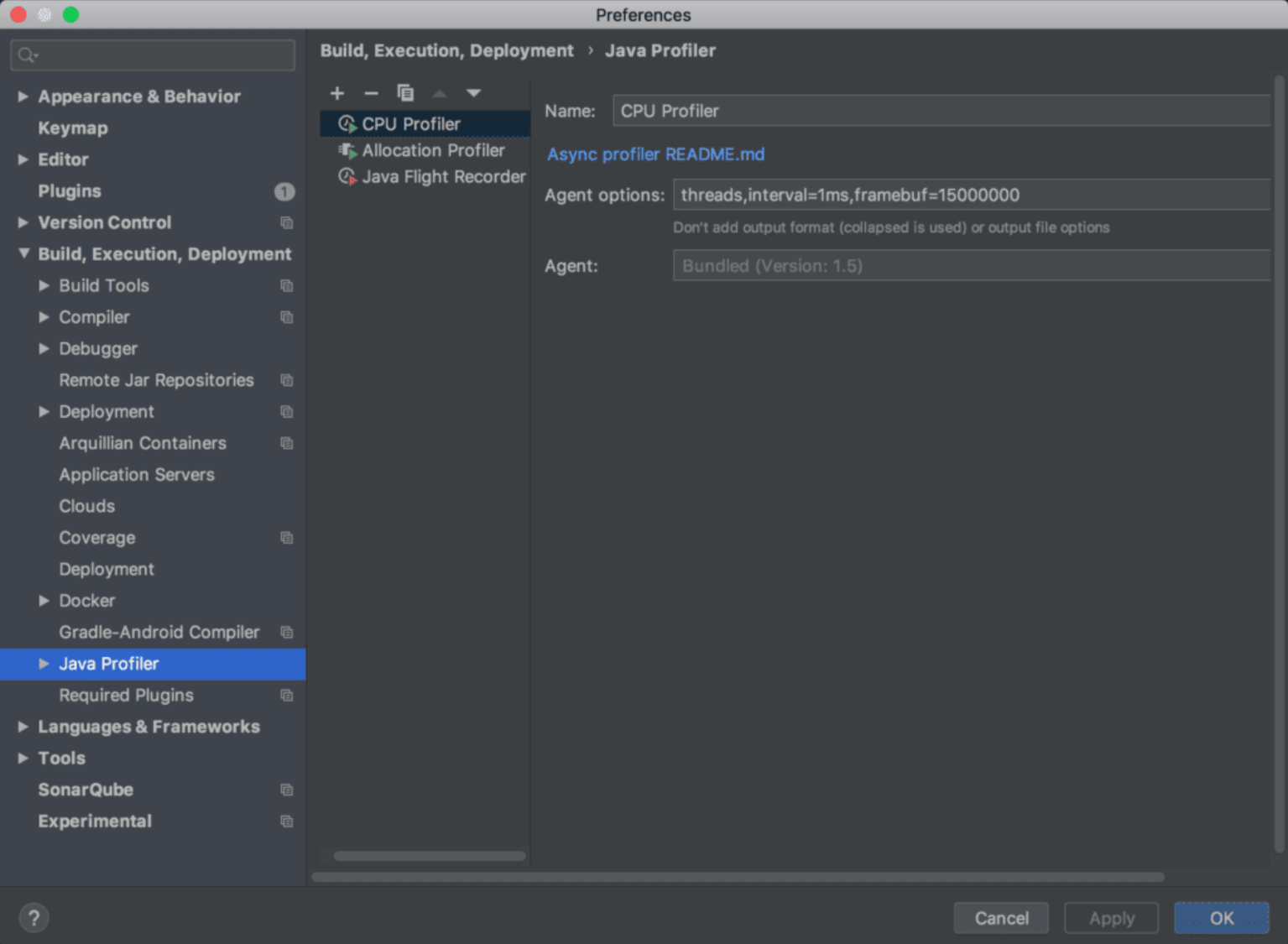
此外,为了快速使用,我们可以选择任何预定义的配置,如IntelliJ IDEA提供的CPU性能分析器和内存分配分析器。
同样,我们可以复制一个性能分析模板,并针对特定用例编辑“代理”选项。
使用IntelliJ IDEA进行概要文件应用
使用性能分析工具分析我们的应用程序有几种方法。
例如,我们可以选择应用程序,并选择“使用<性能分析器配置名称>运行<应用程序名称>”选项:
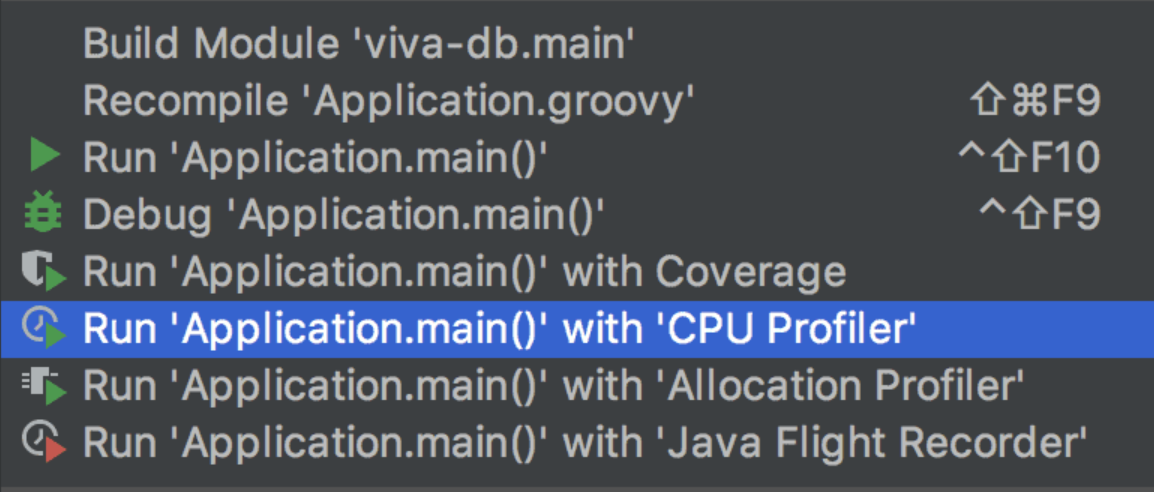
或者,我们可以点击工具栏,并选择“使用<性能分析器配置名称>运行<应用程序名称>”选项:

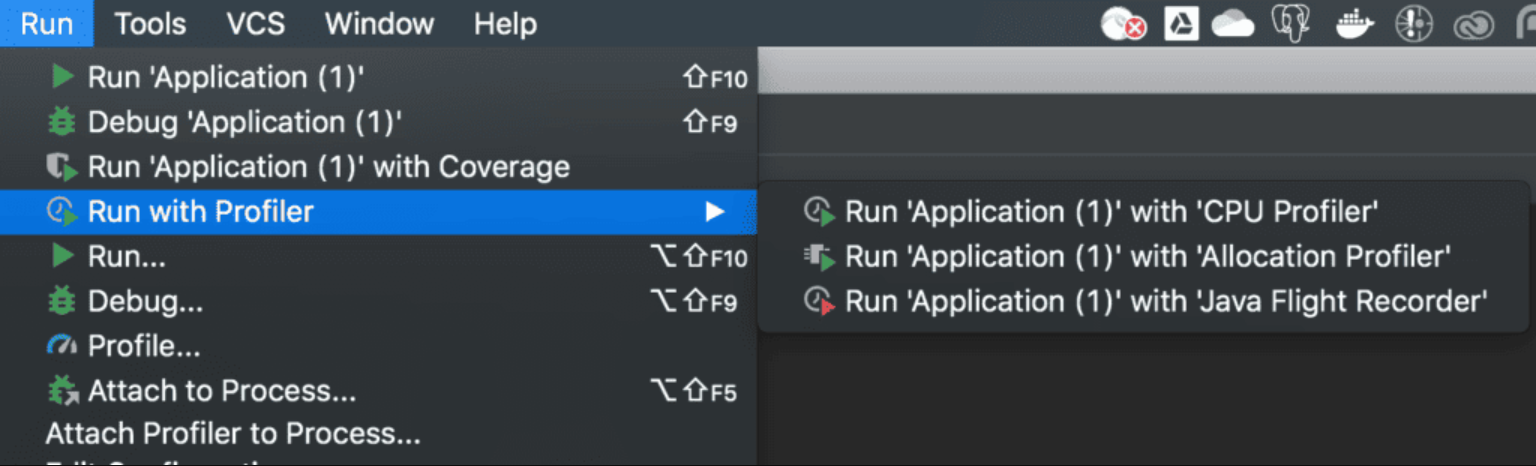
或者,在“运行”菜单下选择“使用性能分析器运行”选项,然后选择<性能分析器配置名称>:
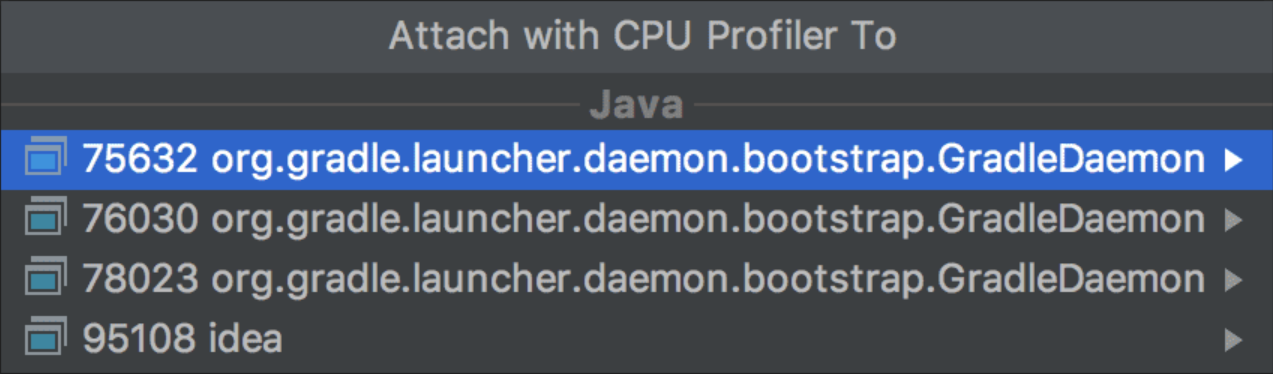
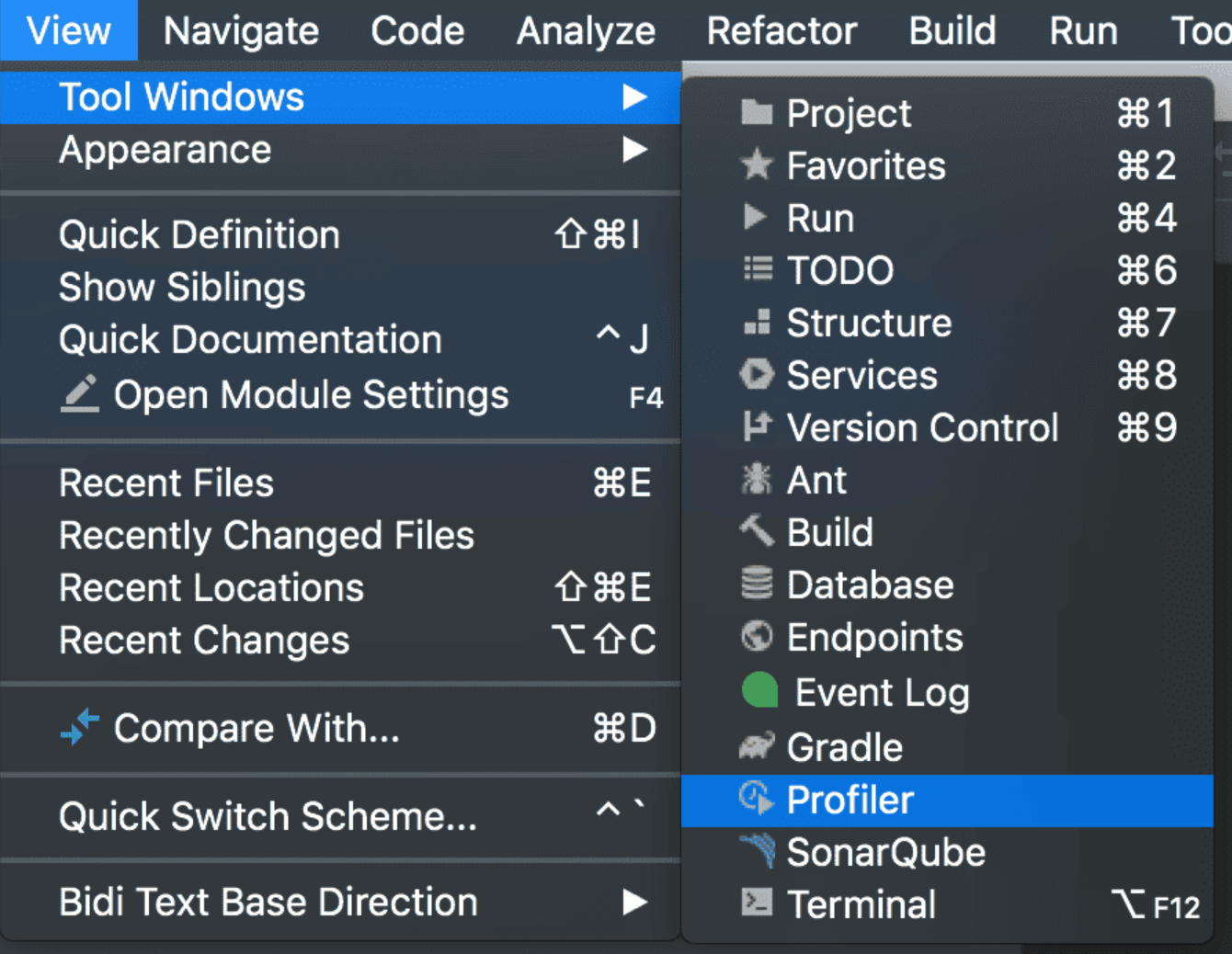
此外,我们可以在“运行”菜单下看到“将探查器附加到进程”选项。该选项会打开一个对话框,让我们选择要附加的进程:
一旦我们的应用程序被分析,我们就可以使用IDE底部的“分析器”工具窗口栏来分析分析结果。
我们应用程序的性能分析结果将如下所示:
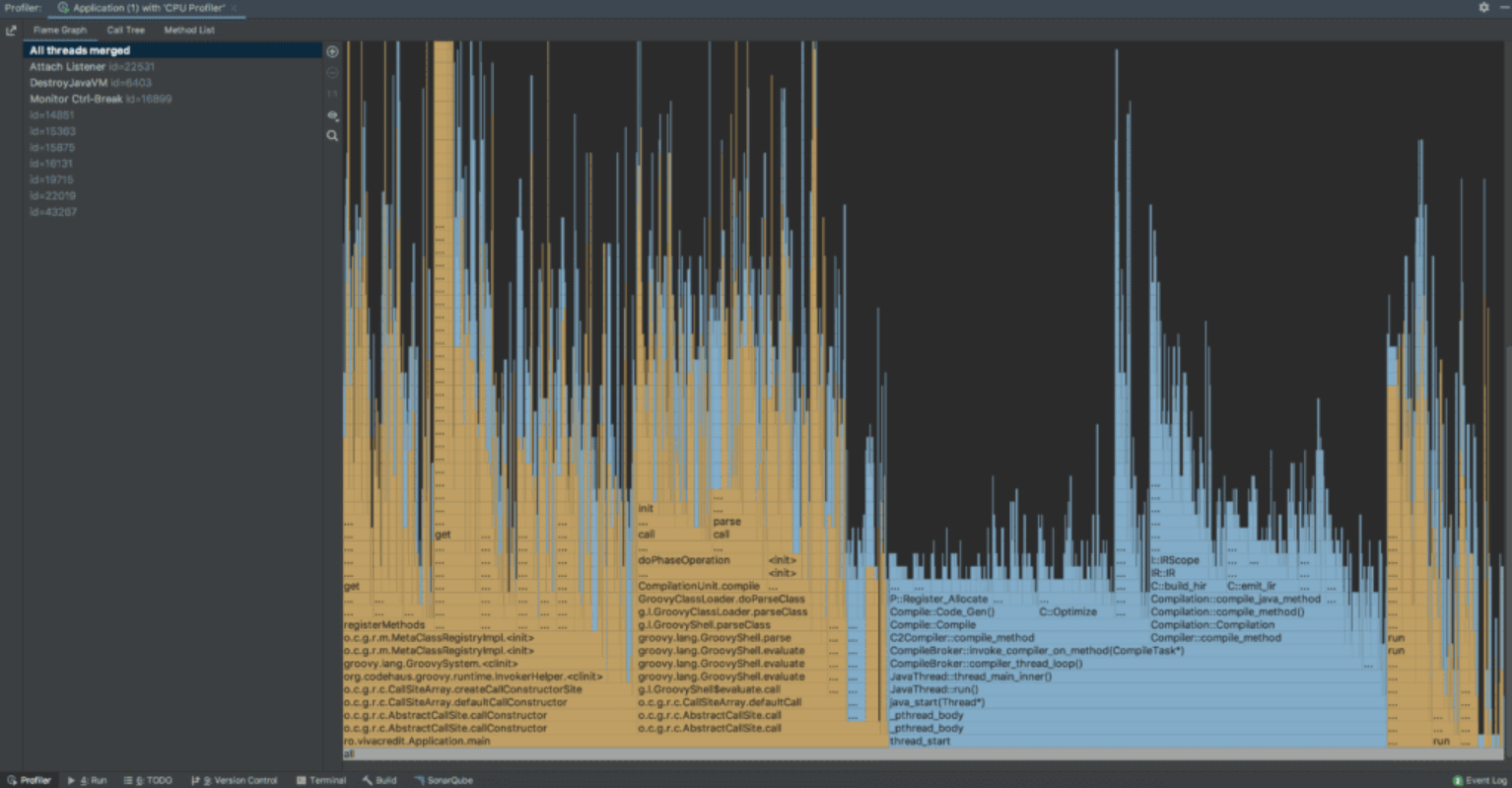
它以不同的输出格式(如火焰图、调用树和方法列表)展示线程级的结果。
结论
在本文中,我们探讨了async-profiler以及一些性能分析技术。
首先,我们了解了在使用Linux平台时如何配置内核,以及一些推荐的JVM参数,以便开始分析我们的应用程序并获得准确的结果。
然后,我们研究了各种性能分析技术,如CPU分析、内存分配分析和计时器分析。
最后,我们使用IntelliJ IDEA和async-profiler对一个应用程序进行了性能分析。
原文地址: https://www.baeldung.com/java-async-profiler
除特别注明外,本站所有文章均为老K的Java博客原创,转载请注明出处来自https://javakk.com/3052.html



 在这个努力程度如此低下的时代,还轮不到比拼天赋。静下心来,just do it

暂无评论